How to Use Local Delivery Labels in ShipLeap (Beta)
ShipLeap’s Local Delivery feature allows you to create shipping labels for deliveries made using your own vehicles—no carrier (UPS/FedEx) required.
This is ideal for local customer deliveries or jobs where you want a branded label with contents listed. Instead of purchasing a carrier label, you can generate a delivery label with your company branding.
How to Create a Local Delivery Label
Step 1: Start a New Shipment from the SHIP tab. Begin creating a shipment as you normally would.
Step 2: In the carrier/service selection area, choose Local Delivery. This will bypass carrier rate shopping
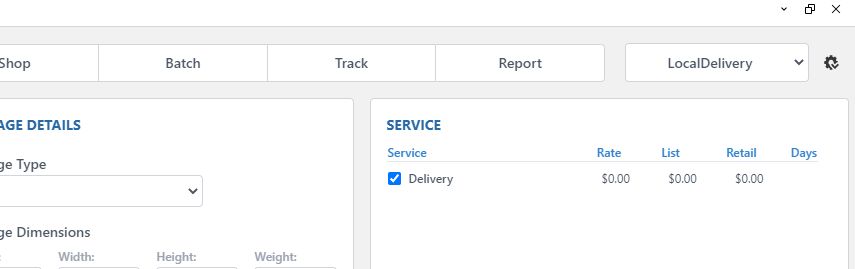
Step 3: Enter the number of boxes as you would typically do for a carrier like UPS/FEDEX
Step 4: (Optional) Enter description of contents in Reference fields
Step 5: Click the blue SHIP button to generate the label. Your company logo will appear on the label (if set up). The system will generate a Local Delivery label instead of a carrier label
Tracking & Status Updates
Go to the Track tab. Click on the LOCAL button to see the local deliveries. Select the delivery. Update the delivery status manually (e.g., Delivered)
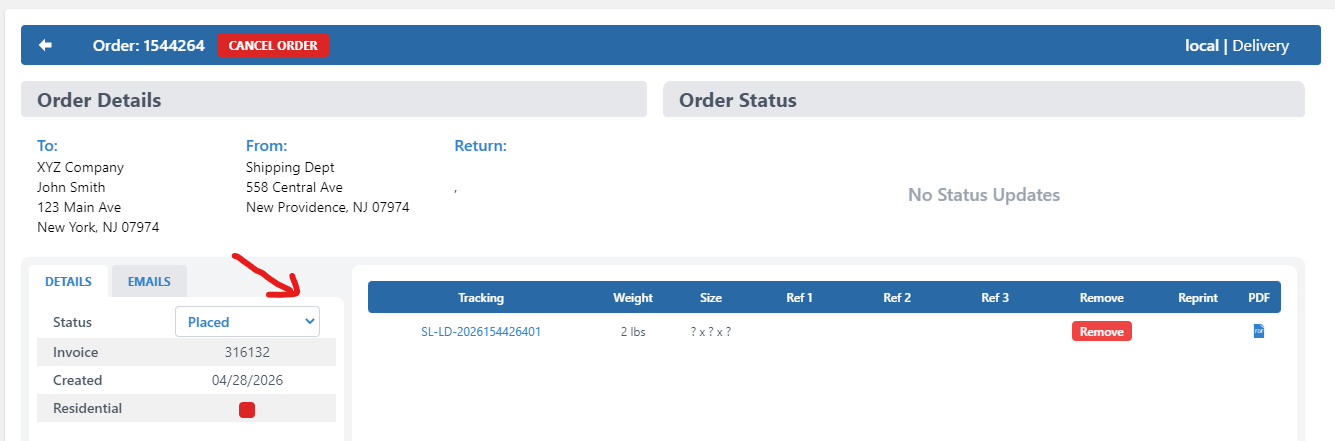
This allows your team to keep internal visibility on delivery progress.
Tips for Using Local Delivery Effectively
- Use clear descriptions for contents to help drivers
- Standardize how your team updates statuses
- Use this for repeat routes or scheduled deliveries
Important Notes
- This feature is currently in Beta. Please send feedback so we can review and improve the process.
- Status updates must be manually updated for now.
Was this article helpful?
That’s Great!
Thank you for your feedback
Sorry! We couldn't be helpful
Thank you for your feedback
Feedback sent
We appreciate your effort and will try to fix the article