As of version 9.0, ShipLeap allows you to define what gets shipped in each of your boxes and to print out a packing list for your packages.
If you are Printsmith Vision customer, we will pull in the line items from an order.
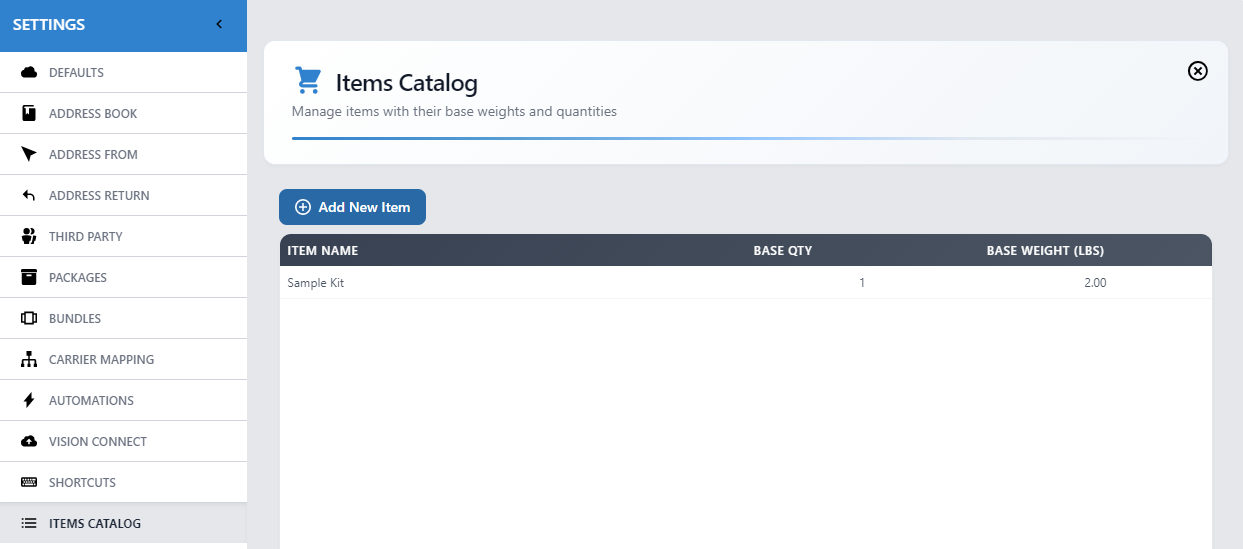
If you have particular items that you ship often, you can define that in the settings. Click on Gear>Settings>Items Catalog. Click on Add New Item
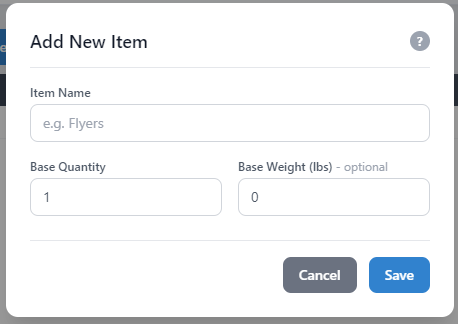
From here, you can define the name of the item, base quantity, and base weight. Create items that are common in your organization.
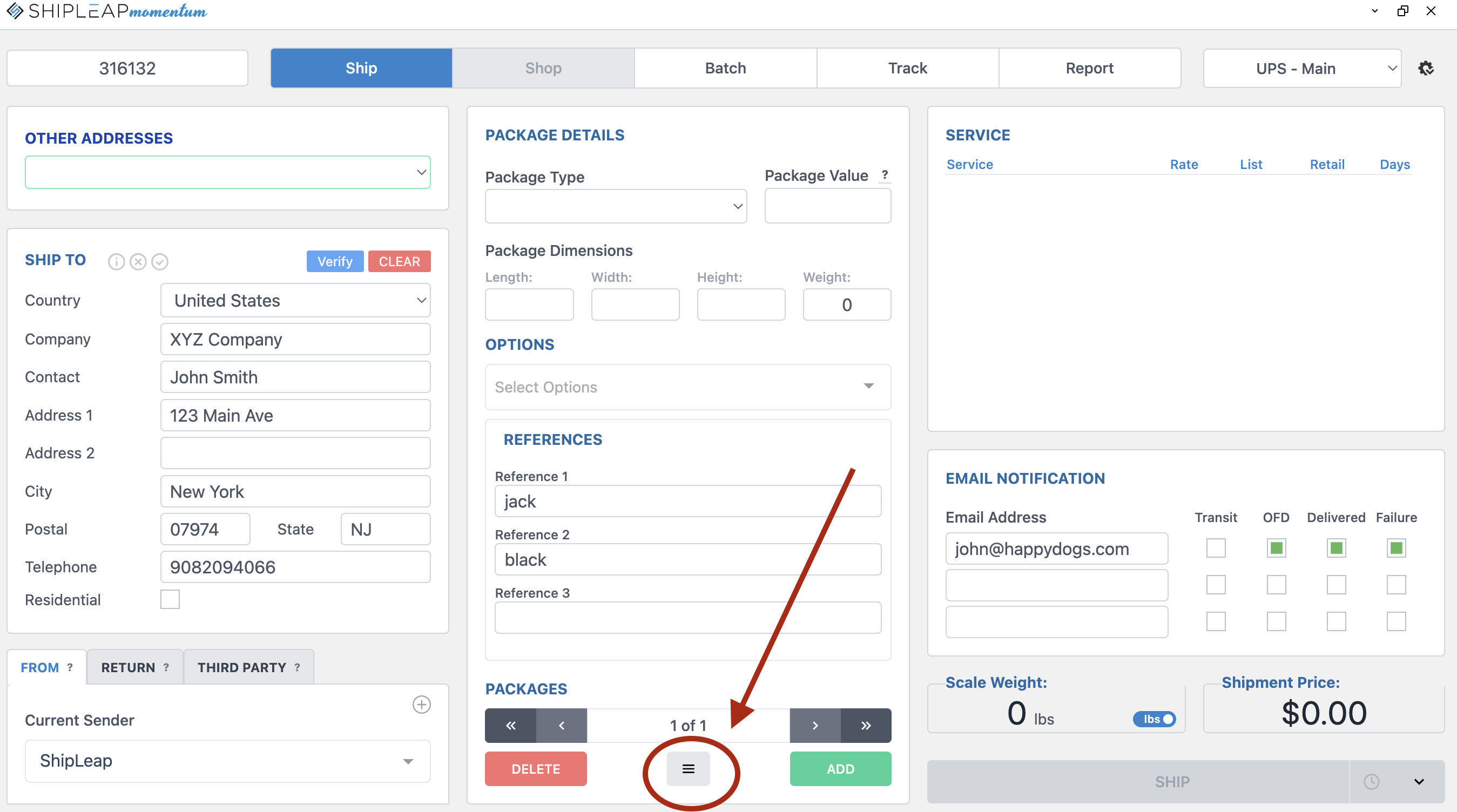
You can associate different items to the boxes. This way, you can document the contents each of your shipping boxes. If you are a PrintSmith user, you can pull the line items in your PrintSmith invoice. You can place the invoice number in scanner input. Then, hit the icon at the bottom center.
You can add a custom item, invoice line item, or common catalog item to your box. Make sure you add a quantity on the left before you move the item to the box.
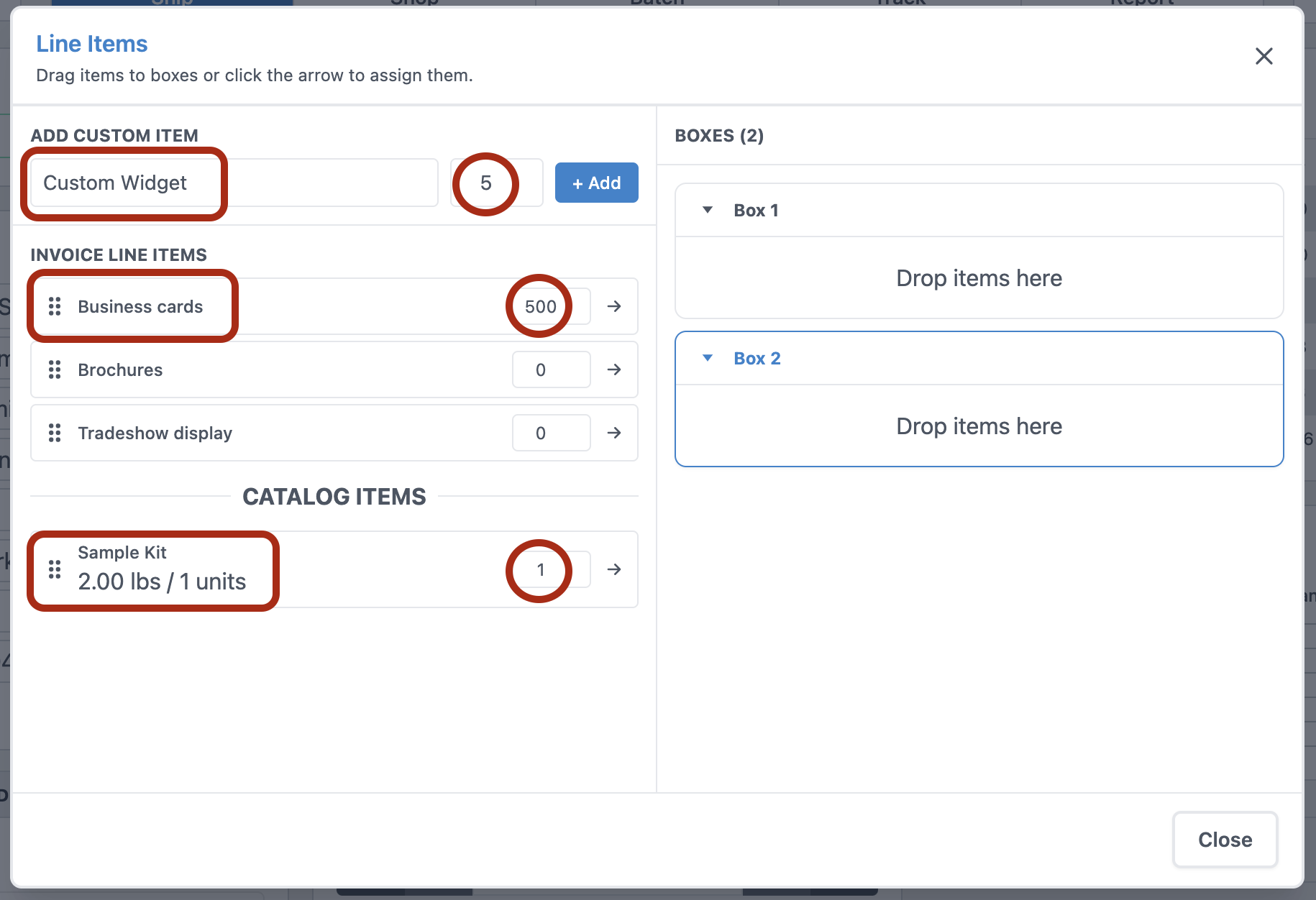
You can either press the +Add, right arrow to move the item to the box, or you can drag the item to the box. If you move the Catalog Item, the default weight will be added to the box weight at the SHIP screen.
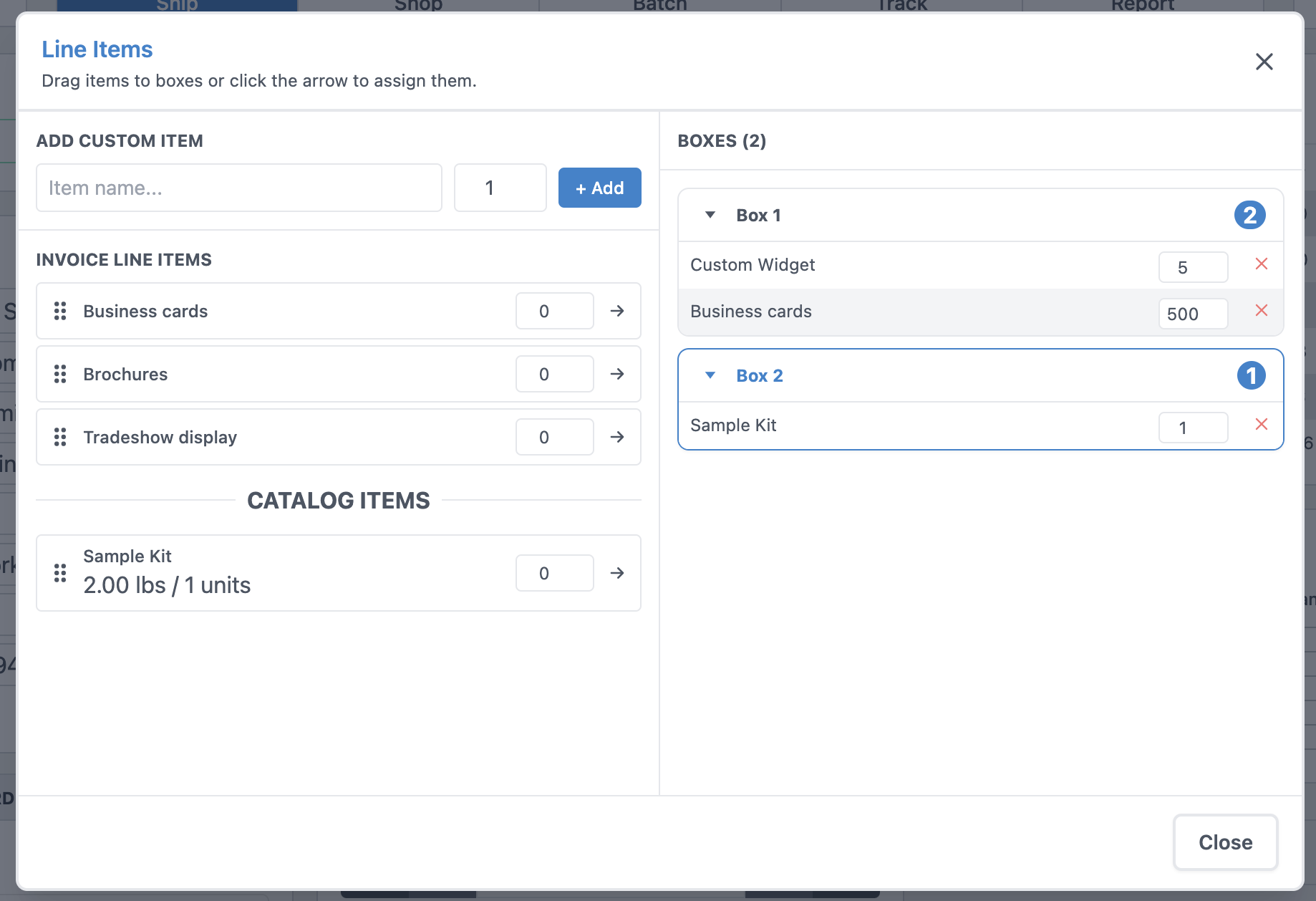
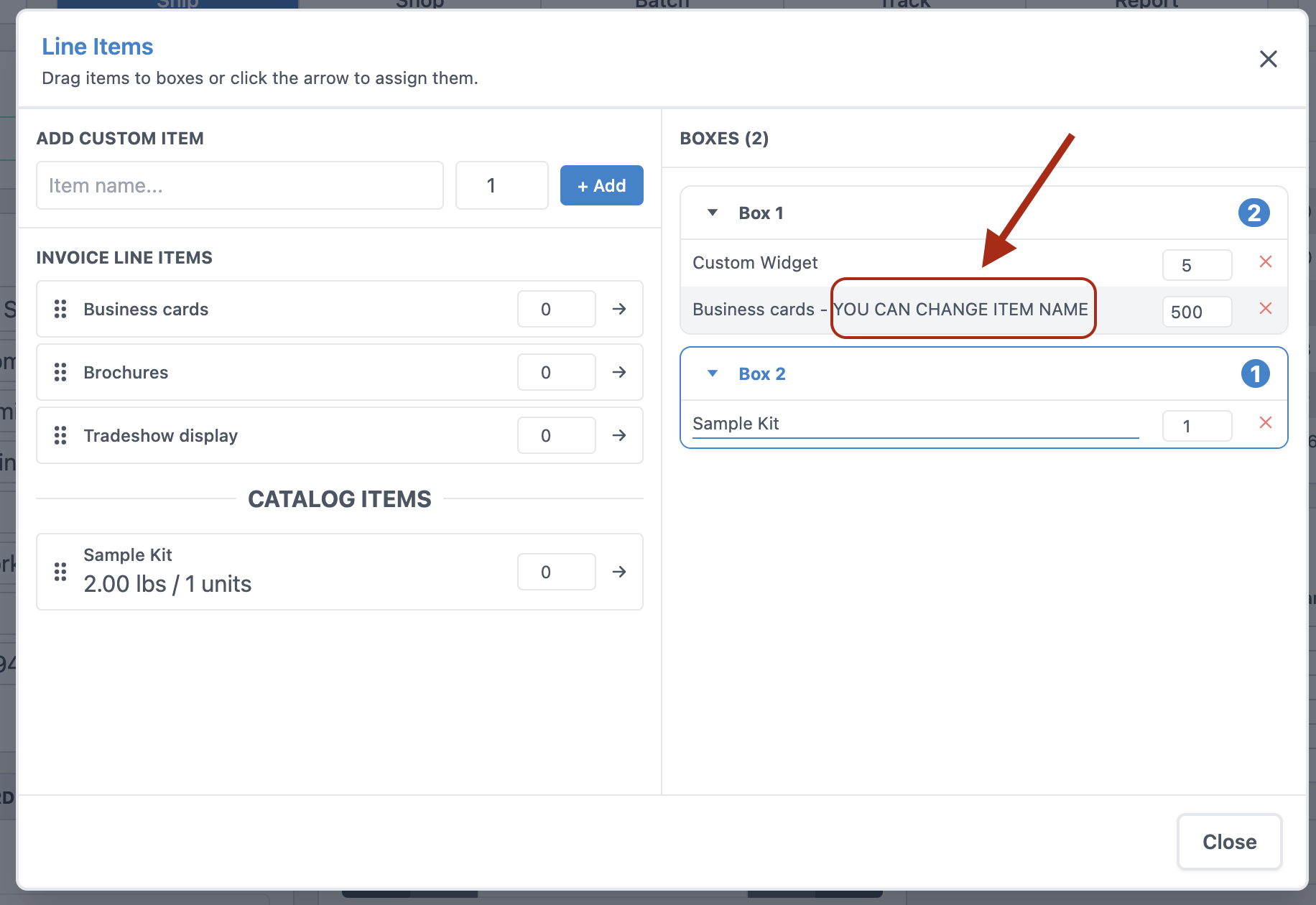
Keep in mind, you have the option to change the name of the item once it's placed in the box. Press the CLOSE button when you are done.
At the SHIP screen, you will get this popup when you click the SHIP button.
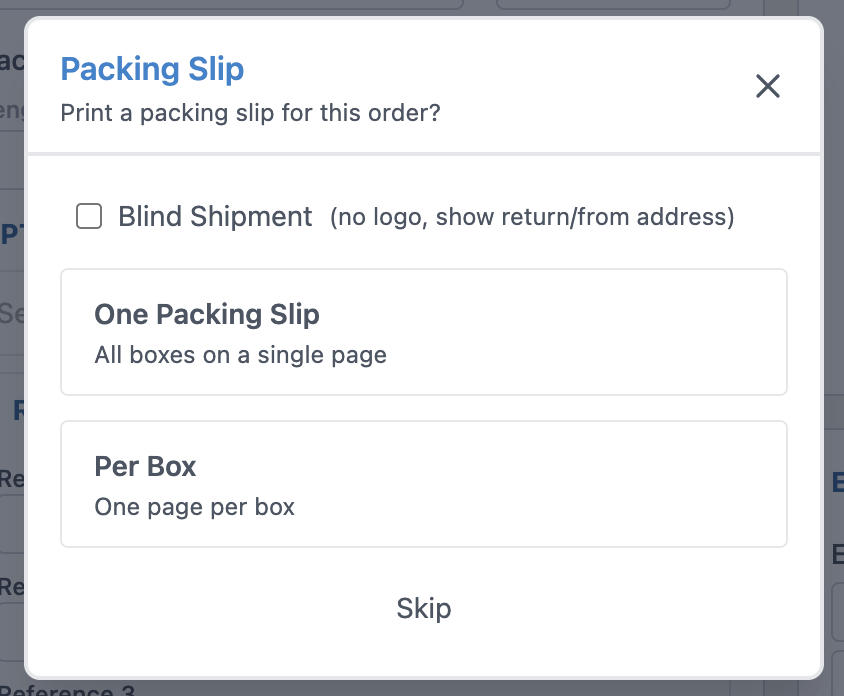
- Click the BLIND SHIPMENT if you don't want your packing list branded with your logo.
- If you click on "One Packing Slip" you will only get 1 slip which you can include in the primary box.
- If you want to print a slip for each box that shows what's in the box, click on "Per Box"
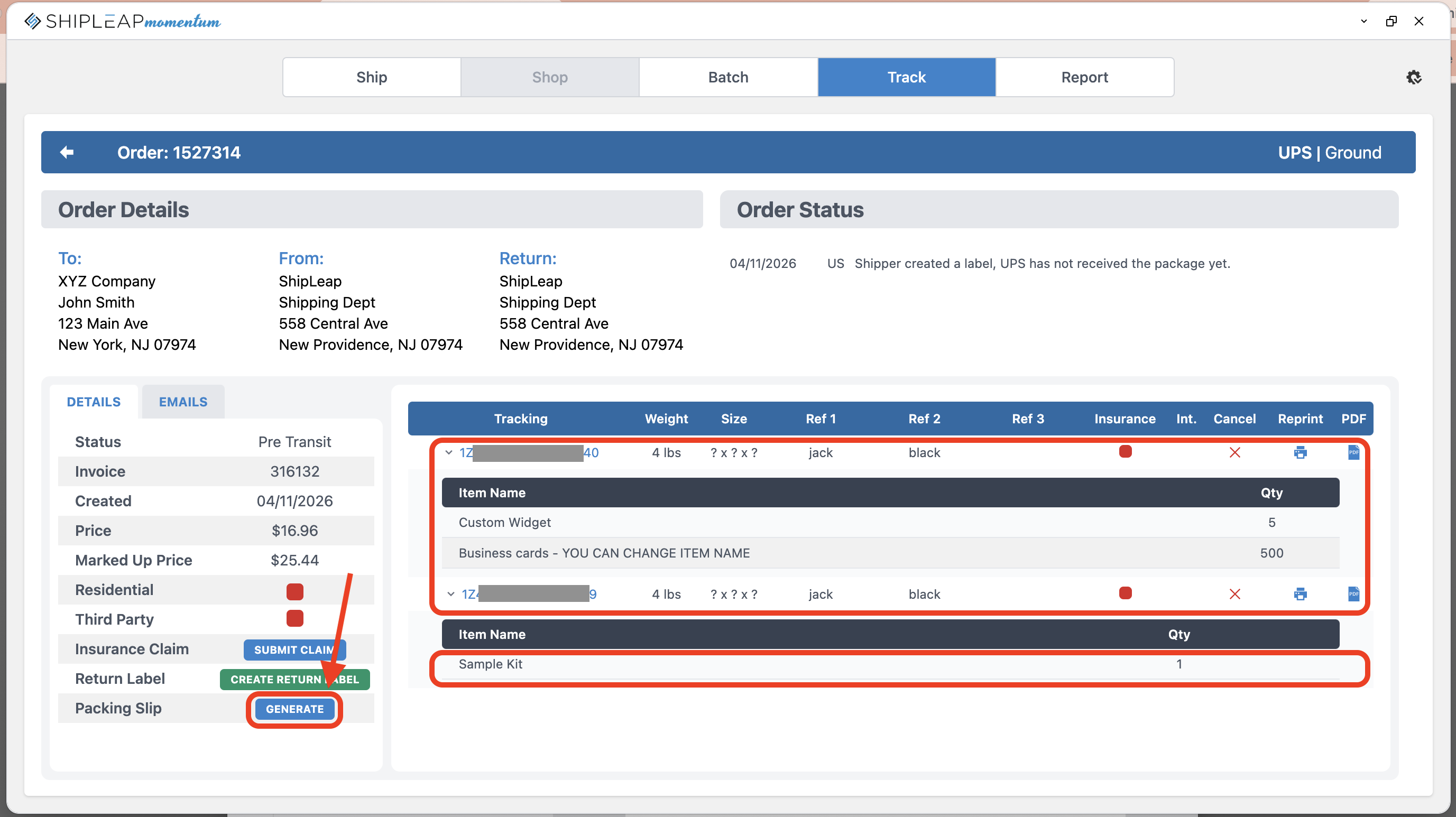
If you need to reference what is in each box, you can go to the TRACK tab and click on the icon ">" near the tracking number. Also, you can reprint the packing slip from the bottom left
Was this article helpful?
That’s Great!
Thank you for your feedback
Sorry! We couldn't be helpful
Thank you for your feedback
Feedback sent
We appreciate your effort and will try to fix the article